

Publish Markdown from Visual Studio Code.
The JotBird extension for VS Code lets you publish any Markdown file to a shareable web page with one command. No account required. Just install and publish.
How it works
From install to published link in under a minute.
Install
Publish
Cmd+Shift+P → JotBird: Publish.Share
Built for VS Code
Everything you need to go from Markdown file to web page without leaving your editor.
One-click publishing
Publish from the command palette, context menu, or explorer sidebar. Republish to update — same URL, fresh content.
Auto-copy to clipboard
The published URL is automatically copied to your clipboard after publishing. Ready to paste anywhere.
Status bar indicator
See the publish state of the current file at a glance in the VS Code status bar.
Context menu integration
Right-click any Markdown file in the editor or explorer to publish, copy link, or unpublish.
How it looks
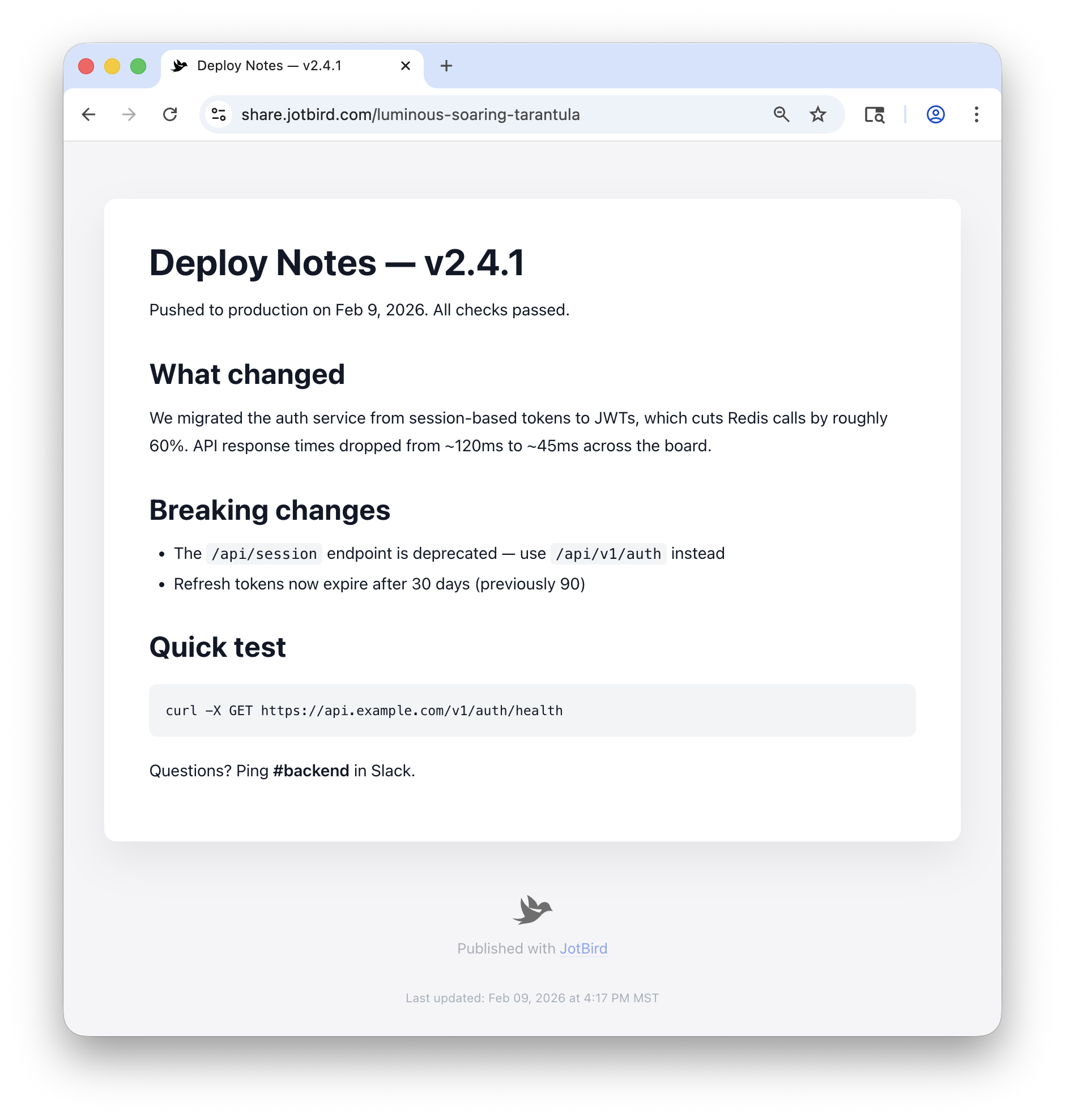
Every published page gets a responsive URL — no ads, no tracking, no clutter, just your content. Markdown is rendered with proper typography, code blocks, headings, and lists. Here's an example.
Ready to publish from VS Code?
Install the free JotBird extension to start publishing Markdown files from your editor.
Getting Started
Everything you need to know about the JotBird VS Code extension.
Setup
Installation
Install from the VS Code Marketplace or search for “JotBird” in the Extensions panel.
- Open VS Code
- Go to Extensions (
Cmd+Shift+X) - Search “JotBird”
- Click Install
The extension activates automatically when you open a Markdown file.
Usage
Publishing
There are three ways to publish a file:
- Command palette —
Cmd+Shift+P→ “JotBird: Publish” - Editor context menu — Right-click in the editor → “JotBird: Publish”
- Explorer context menu — Right-click a file in the sidebar → “JotBird: Publish”
Republishing the same file updates the existing page — same URL, fresh content. The published URL is automatically copied to your clipboard.
Reference
Commands
| Command | Description |
|---|---|
JotBird: Publish | Publish or update the current Markdown file |
JotBird: Copy Link | Copy the published URL to the clipboard |
JotBird: Unpublish | Remove the published page |
JotBird: Sign In | Sign in via browser (opens jotbird.com) |
JotBird: Sign Out | Sign out of your account |
JotBird: Upgrade to Pro | Open the Pro upgrade page |
Setup
Authentication
Connect your JotBird account to get 90-day links.
- Open the command palette (
Cmd+Shift+P) - Run JotBird: Sign In
- Your browser opens jotbird.com — sign in or create an account
- The token is sent back to VS Code automatically
You can also paste an API key manually from Account Settings in the web app.
Configuration
Settings
| Setting | Default | Description |
|---|---|---|
jotbird.autoCopyLink | true | Automatically copy the URL to the clipboard after publishing |
jotbird.showStatusBarItem | true | Show the JotBird status bar item |
Access settings via Settings → search “JotBird”, or add them directly to your settings.json:
{
  "jotbird.autoCopyLink": true,
  "jotbird.showStatusBarItem": true
}
Upgrade
Pro Features
Upgrade to JotBird Pro for permanent links that never expire.
You can upgrade from the command palette (JotBird: Upgrade to Pro) or from jotbird.com/pro.
The JotBird VS Code extension is open source. View on GitHub