

Mermaid Flowchart Template
Free Markdown Mermaid diagram template. Shows flowchart and sequence diagram syntax. JotBird renders Mermaid diagrams automatically when you publish.
Free. No signup required.
Preview
This is what your published page will look like. Customize it in the editor, then share the link.
Mermaid diagrams render as visual diagrams when published. The preview below shows the source code.
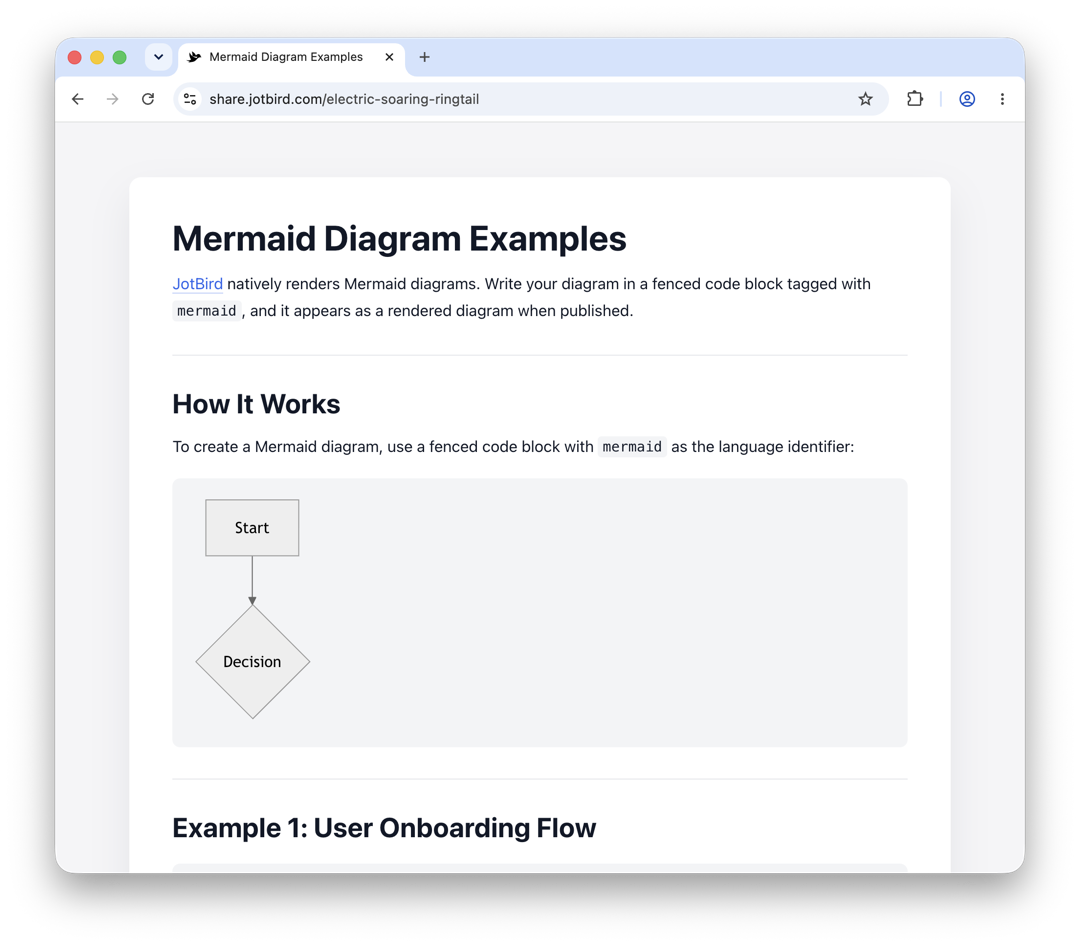
Mermaid Diagram Examples
JotBird natively renders Mermaid diagrams. Write your diagram in a fenced code block tagged with mermaid, and it appears as a rendered diagram when published.
How It Works
To create a Mermaid diagram, use a fenced code block with mermaid as the language identifier:
graph TD
    A[Start] --> B{Decision}
Example 1: User Onboarding Flow
graph TD
    A([User signs up]) --> B{Email verified?}
    B -- Yes --> C[Show dashboard]
    B -- No --> D[Send verification email]
    D --> E{Verified within 24h?}
    E -- Yes --> C
    E -- No --> F[Send reminder email]
    F --> G{Verified within 48h?}
    G -- Yes --> C
    G -- No --> H([Account deactivated])
    C --> I{Profile complete?}
    I -- Yes --> J([Onboarding complete])
    I -- No --> K[Show setup prompts]
    K --> J
Example 2: CI/CD Pipeline
graph LR
    A([Git push]) --> B[Run linter]
    B --> C{Lint pass?}
    C -- No --> X([Fail])
    C -- Yes --> D[Run tests]
    D --> E{Tests pass?}
    E -- No --> X
    E -- Yes --> F[Build Docker image]
    F --> G[Push to registry]
    G --> H[Deploy to staging]
    H --> I{Smoke tests pass?}
    I -- No --> J[Rollback]
    J --> X
    I -- Yes --> K[Deploy to production]
    K --> L([Live])
Example 3: Sequence Diagram
sequenceDiagram
    participant U as User
    participant A as App
    participant DB as Database
    participant E as Email Service

    U->>A: Sign up (email)
    A->>DB: Create user record
    DB-->>A: User ID returned
    A->>E: Send verification email
    E-->>U: Email delivered
    U->>A: Click verification link
    A->>DB: Mark email as verified
    DB-->>A: Updated
    A-->>U: Redirect to dashboard
Tips
- Mermaid diagrams are rendered when you publish your document — the editor preview shows the raw code
- Use
graph TDfor top-down flowcharts,graph LRfor left-right - Node shapes:
[rectangle],{diamond},([rounded]),((circle)) - Supported types:
graph,sequenceDiagram,gantt,pie,classDiagram, and more
See the Mermaid documentation for the full syntax reference.
How to customize
Replace the diagram code inside the mermaid fenced code blocks with your own diagrams. Each diagram type (graph, sequenceDiagram, gantt, etc.) has its own syntax — see the Mermaid docs link at the bottom. Delete the examples you don't need.
Markdown source
# Mermaid Diagram Examples

[JotBird](https://jotbird.com) natively renders Mermaid diagrams. Write your diagram in a fenced code block tagged with `mermaid`, and it appears as a rendered diagram when published.

---

## How It Works

To create a Mermaid diagram, use a fenced code block with `mermaid` as the language identifier:

```mermaid
graph TD
    A[Start] --> B{Decision}
```

---

## Example 1: User Onboarding Flow

```mermaid
graph TD
    A([User signs up]) --> B{Email verified?}
    B -- Yes --> C[Show dashboard]
    B -- No --> D[Send verification email]
    D --> E{Verified within 24h?}
    E -- Yes --> C
    E -- No --> F[Send reminder email]
    F --> G{Verified within 48h?}
    G -- Yes --> C
    G -- No --> H([Account deactivated])
    C --> I{Profile complete?}
    I -- Yes --> J([Onboarding complete])
    I -- No --> K[Show setup prompts]
    K --> J
```

---

## Example 2: CI/CD Pipeline

```mermaid
graph LR
    A([Git push]) --> B[Run linter]
    B --> C{Lint pass?}
    C -- No --> X([Fail])
    C -- Yes --> D[Run tests]
    D --> E{Tests pass?}
    E -- No --> X
    E -- Yes --> F[Build Docker image]
    F --> G[Push to registry]
    G --> H[Deploy to staging]
    H --> I{Smoke tests pass?}
    I -- No --> J[Rollback]
    J --> X
    I -- Yes --> K[Deploy to production]
    K --> L([Live])
```

---

## Example 3: Sequence Diagram

```mermaid
sequenceDiagram
    participant U as User
    participant A as App
    participant DB as Database
    participant E as Email Service

    U->>A: Sign up (email)
    A->>DB: Create user record
    DB-->>A: User ID returned
    A->>E: Send verification email
    E-->>U: Email delivered
    U->>A: Click verification link
    A->>DB: Mark email as verified
    DB-->>A: Updated
    A-->>U: Redirect to dashboard
```

---

## Tips

- Mermaid diagrams are rendered when you **publish** your document — the editor preview shows the raw code
- Use `graph TD` for top-down flowcharts, `graph LR` for left-right
- Node shapes: `[rectangle]`, `{diamond}`, `([rounded])`, `((circle))`
- Supported types: `graph`, `sequenceDiagram`, `gantt`, `pie`, `classDiagram`, and more

See the [Mermaid documentation](https://mermaid.js.org/intro/) for the full syntax reference.
Ready to use this template?
Open it in the editor — no signup needed.